
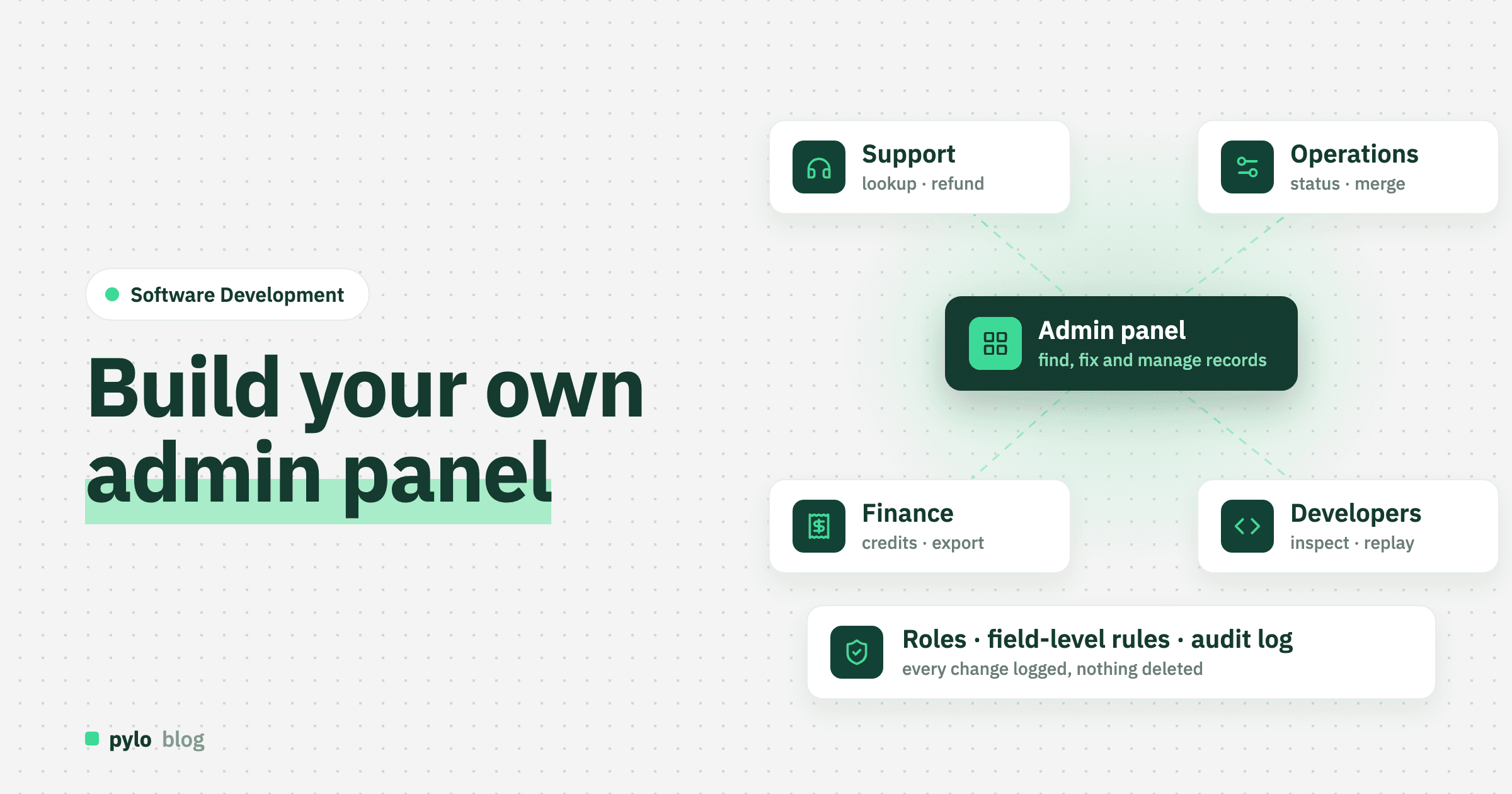
The first admin panel most products get is a developer running SQL because support asked them to change a customer's email. The second is a hastily built page with a table and an edit button that anyone with a login can use on any record. Neither lasts. An admin panel done properly is the screen your team uses every day to find, fix and manage records, with the right people allowed to change the right fields and a log of who did what. This guide shows how to build one: what belongs in it, the data model behind it, the permissions, the screens, the actions that make it more than a table, the four ways to build it and what each costs.
What is an admin panel?
An admin panel is an internal interface on top of your application's database. Team members use it to look up users, orders, subscriptions or tickets, correct records, trigger actions such as a refund or a password reset, and see what changed. It is not the dashboard with the charts, although it often has one on its front page, and it is not the customer-facing app. It's your internal, log-in protected tool to access your data.
Admin panels are the most common kind of internal tool. The difference to a back office for orders or an approval app is scope: an admin panel covers the whole data model, usually with generic list, detail and edit screens, where other internal tools cover one process in depth.
Who uses an admin panel, and for what
Count the requests that reach your developers from the rest of the company for one month. The list is the spec:
Support looks up a customer, sees their orders, resends an invoice, changes an address, issues a refund.
Operations corrects an order status, reassigns a delivery, merges duplicate customers.
Finance checks a subscription, applies a credit, exports last month's invoices.
Sales changes a price list or a customer's payment terms.
Developers inspect a record that caused an error, replay a failed webhook, flip a feature flag.
Each row is a screen, an action or a permission. If a request appears more than twice a month, it belongs in the panel. If it appears once a year, it stays a developer task.
Step 1: Decide what belongs in it
The temptation is to expose every table with every field. Resist it. The first version covers the entities support and operations touch most, usually customer, order, invoice and subscription or ticket, and only the fields those teams need to see and change. Everything else is reachable later through relations, and a panel with four well-made screens beats one with forty generated ones.
Step 2: Get the data model right underneath
An admin panel does not have its own data model. It sits on the product's. Three things on that model decide whether the panel is pleasant or painful:
Need | What it looks like in the model | Why it matters in the panel |
Real relations | Order belongs to customer, has many lines and invoices | The customer page can show orders and invoices without a developer writing a join for each view |
Display names | Every entity has a field that identifies a record to a human: name, number, email | Dropdowns and links show "Order 10234" rather than a UUID |
Statuses as enums | A fixed list of values, not free text | Filters, boards and permission rules per status work out of the box |
Soft delete | A deleted-at date instead of removing the row | Support can undo a mistake, and invoices keep their customer |
Change log | Who changed which field, when, from what to what | The audit trail in step 6 comes for free |
If your data still lives in spreadsheets, there is no product database to put a panel on yet. Our guide on Excel as a database covers that first step.
Step 3: Permissions by role and by field
This is the step that separates an admin panel from a liability. Three layers:
Roles. Support, operations, finance, admin. Each role gets read, create, update and delete rights per entity. Read-only is the default. Delete is for almost nobody.
Field-level rules. Support may see a customer's email and change the address, but not the payment terms or the internal risk score. Finance may change payment terms. The same record, different fields per role.
Record-level rules. A regional team sees its region's customers. An agency sees its clients' records. The filter runs in the backend, on every query, not in the panel's code.
Enforce all three in the backend. An admin panel that checks permissions in the frontend is one browser developer-tools session away from full access. And log every login and every change. The panel is where the most powerful changes to your data happen, so it is where the audit trail matters most.
Step 4: Build the screens
Five screens cover most of what staff need:
Search. One box that finds a customer by name, email, phone or order number. This is the screen support opens a hundred times a day, so it has to be fast and forgiving.
List. A table per entity with filters, sorting, saved views and bulk selection. Columns the role may see, nothing else.
Detail. One record with its related records on the same page: the customer with their orders, invoices and tickets. Most lookups end here.
Edit. A form with validation and only the fields the role may change. Dangerous changes, such as a new bank account, open a confirmation or an approval.
Board or dashboard. Orders by status, tickets by priority, today's exceptions. The screen a team lead looks at in the morning.
Generated screens are fine for lists and details. Hand-built ones pay off for search and for the two or three detail pages support uses most.
Step 5: Add actions, not just edits
A panel where staff can only change field values pushes the real work back to developers. The useful panel has buttons:
Resend invoice, which regenerates the PDF from the template and emails it.
Refund, which calls the payment provider, creates the credit note and sets the order status.
Reset password or log in as this user to see what they see, with the session logged.
Merge duplicate customers, moving orders and invoices to the surviving record.
Replay a failed webhook or export the filtered list as CSV.
Each button is a workflow triggered from a record. Keep the logic in the workflow engine with a permission on who may press the button, and the panel stays a thin layer over rules the business can read.
Step 6: Keep the audit log visible
Every change made through the panel should be visible on the record it changed: who, when, which field, old value, new value. Put it on the detail page, not in a separate log nobody opens. The first time support asks "who changed this price", the answer should be one scroll away. If your backend records changes on every entity, this is a view. If not, build it before the panel goes live, because retrofitting a log after a year of untracked edits is impossible.
Four ways to build an admin panel
Approach | Good for | Watch out for | Typical time to first version |
Hand-coded in your app's framework | Teams that want full control over a few screens | Every new entity and every new field means developer time. Permissions and audit log are built from zero | Weeks |
Admin framework, such as Django admin, Laravel Nova or AdminJS | Teams on one of those stacks with a well-defined model | Tied to the stack. Generic screens are quick, custom actions and field-level rules take real work | Days |
UI builder on your existing database, such as Retool or Appsmith | Teams that already have a backend they are happy with | You still own the API, the permission logic and the audit log. Priced per seat, which grows with every colleague | Days |
Backend platform with a built-in admin UI | Teams that need the data model, API, permissions, workflows and screens together | Very custom screens may still need your own frontend on top of the API | Hours to days |
The question that decides between the last two is whether you already have a backend you trust. If you do, a UI builder draws screens on it. If your data model, permissions and workflows still need to be built, a tool that only draws screens leaves that work with you. Our comparison for teams that need the backend, not just the screens on top goes through this trade-off. Our backend as a service pylo is the fourth option: entities with relations, record and field permissions by role, an admin UI with search, tables, detail views, boards and forms, flows behind the action buttons, an audit log on every record, and a typed GraphQL API with a Next.js SDK for the screens you want to build yourself.
How much does an admin panel cost?
Compare three-year costs for a panel over five entities, four roles with field-level rules, the five screens and five actions:
Option | Upfront | Ongoing | 3-year estimate |
Hand-coded | more than 200 developer hours | Developer time for every new field, entity or action | more than 16,000€ to build, plus upkeep that never stops |
Admin framework | 40 to 100 developer hours | Developer time for custom actions and rules | 3,200€ to 8,000€ to build, plus upkeep |
UI builder on your database | 30 to 80 hours, done by anyone not just developers | Subscription per seat, plus your own backend work | 2,400€ to 6,400€ to build, plus seats; check the price at 20 users |
Backend platform with admin UI | 10 to 40 hours, mostly configuration | Platform fee | 800€ to 3,200€ to build |
The hour ranges are our estimates, priced at 80€ per hour. The line to watch is per-seat pricing. Admin panels spread. Support gets it first, then operations, then finance and sales, and a tool priced per user turns that spread into a bill. pylo has unlimited users on every plan; the pricing page has the details.
Common mistakes
One role that can do everything. The first version ships with "admin" for all. A year later nobody dares to take rights away. Start with read-only and add.
Exposing every table. Forty generated screens are a maze. Four good ones are a tool.
Edits without a log. The panel is where prices, addresses and bank details get changed. If you cannot say who did it, you cannot run the business on it.
Hard deletes. Support will delete the wrong customer. Soft delete and an undo button cost an hour and save a weekend.
Logic in the panel. If the refund button contains the refund logic, the next panel and the next AI agent have to reimplement it. Put it in a workflow the button calls.
Where AI fits in an admin panel
An admin panel is the natural place to put AI agents under supervision. The agent does what support does: looks up the customer, reads the order history, drafts the address change or the refund. The difference is that its proposed change lands in the same panel as a request a person approves, with the same permissions the agent's user has and the same audit log. That is how pylo's MCP server works: agents read within their rights, every write becomes an approval. Our posts on MCP servers and how to build an AI agent explain the setup.
Conclusion
An admin panel is a set of screens over your product's data model with permissions by role and by field, actions that call workflows and an audit log on every record. Decide what belongs in it from the requests your developers get, fix the model underneath first, enforce permissions in the backend, build five screens, make the buttons do real work and keep the log visible. Start read-only and grow. For the general case of tools your team uses on company data, read our post on what an internal tool is, and for the decision between building and buying, build vs buy software.
pylo gives you that base in one platform: entities with relations, record and field permissions, an admin UI with search, tables, detail views, boards and forms, flows behind every action, an audit log and a typed GraphQL API, hosted in Germany. The first panel is a configuration job, not a project.
Keep reading
Software Development
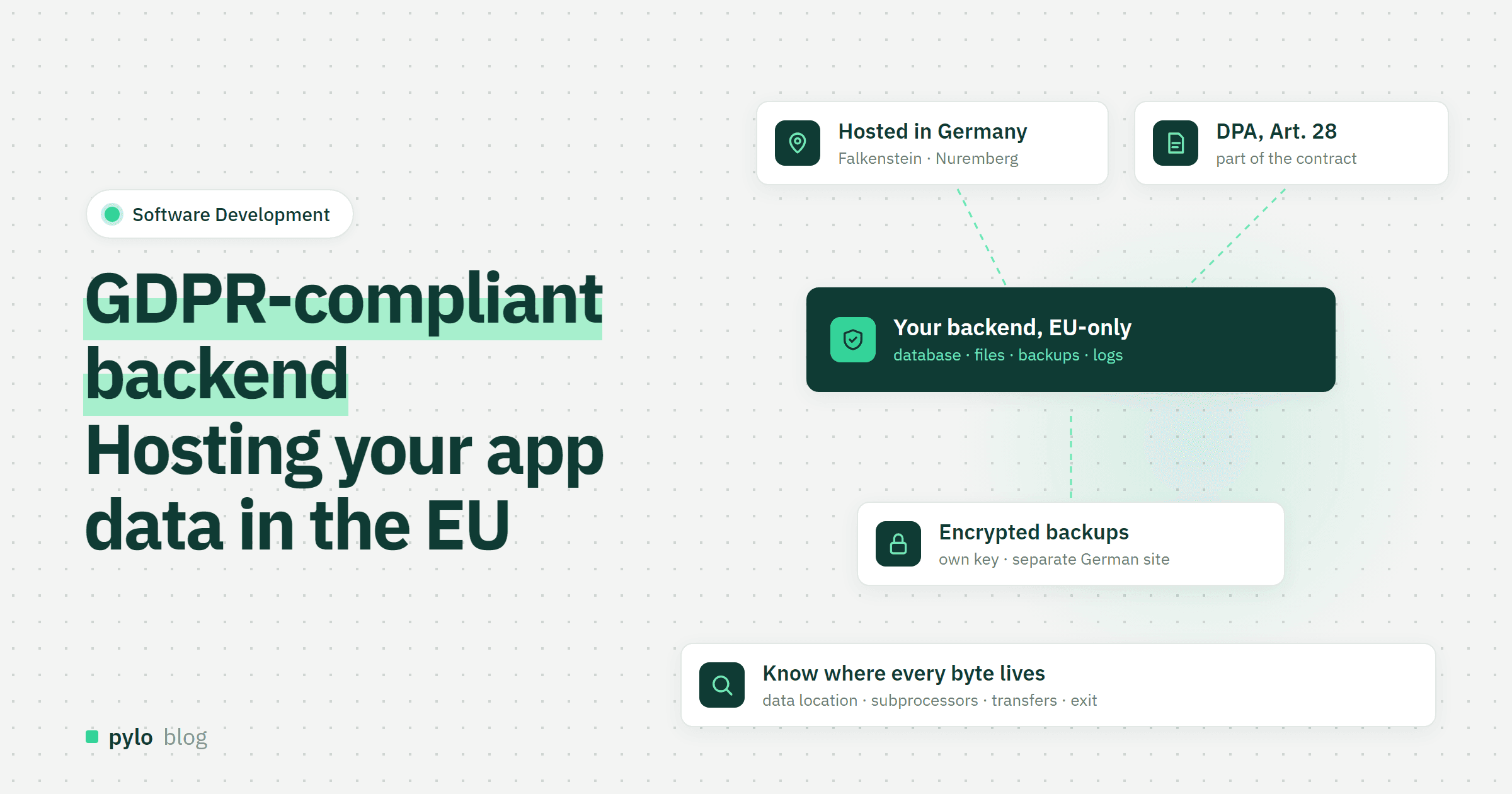
GDPR-compliant backend: how to host app data in the EU and choose the right provider
Where your app data lives decides how much GDPR work you have. What a GDPR-compliant backend needs, why an EU region alone is not always enough, what to check when you choose a provider and how pylo hosts your data in Germany.
Read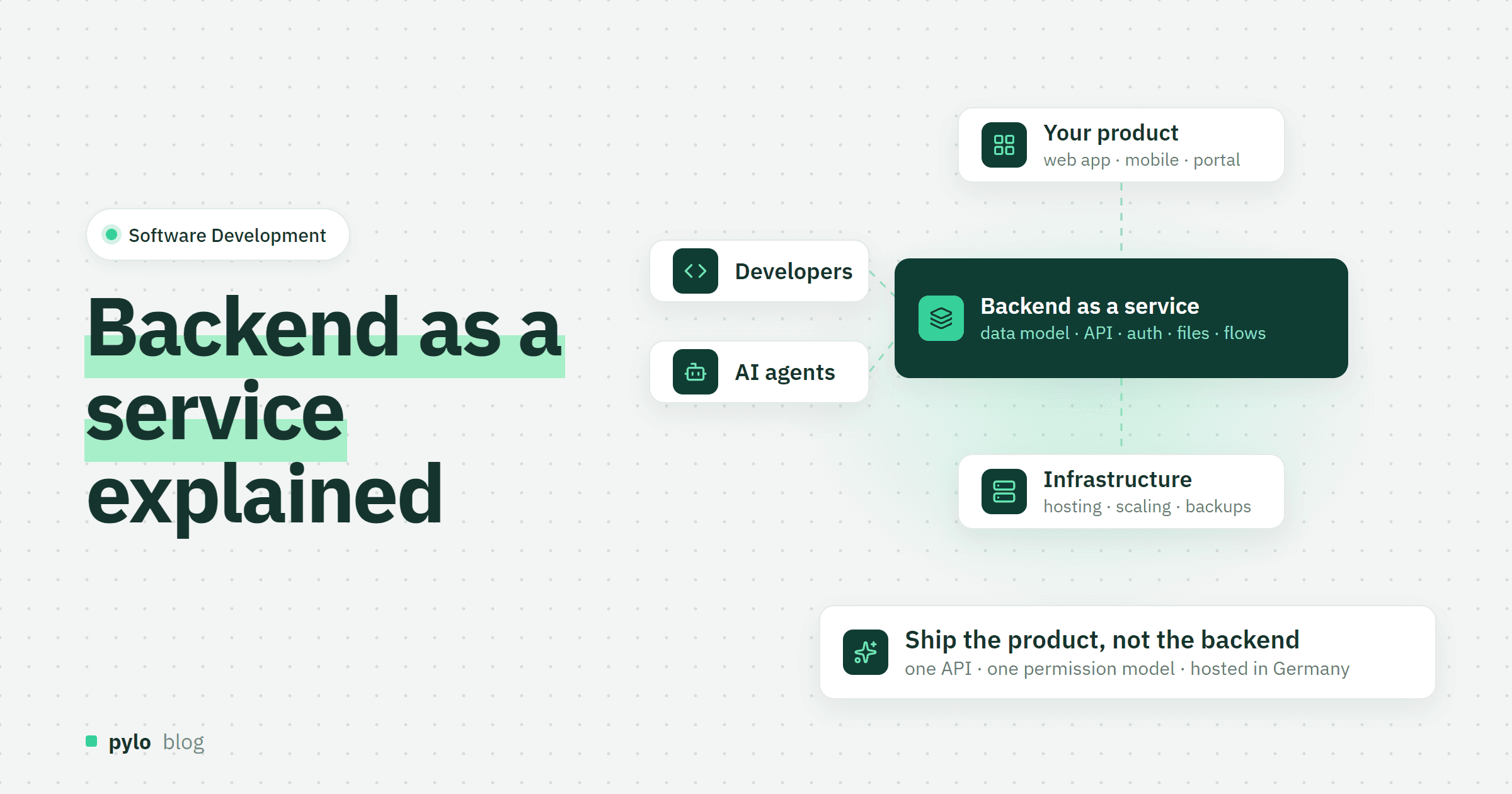
Software Development
What is backend as a service (BaaS)? Definition, examples and when to use one
Backend as a service gives you the database, API, login, file storage and automation of an app without building or running them yourself. What a BaaS includes, how it compares to PaaS and SaaS, what it costs and when it is the right choice.
Read