
Almost every company runs something important on a spreadsheet: inventory, orders, customer lists, production plans. Using Excel as a database is a reasonable start. It is fast, everyone knows it and it costs nothing extra. This guide shows how to set up a database in Excel properly, the signs that your spreadsheet has outgrown it, and how to move from spreadsheet to database without losing data or weeks of work. The running example is an inventory sheet, because that is where most teams feel the pain first.
Can you use Excel as a database?
Yes, for a while. Excel can store structured records, filter and sort them, and look up values across sheets. For one person tracking a few hundred rows, that is enough.
What Excel lacks are the things that make a database a database: relations between tables that the system enforces, rules that stop wrong data from being saved, permissions per record, a history of who changed what, and safe editing by many people at once. You can imitate some of these with discipline. You cannot imitate all of them.
How to create a database in Excel
If you stay with Excel for now, set it up so the later move is easy. Five rules:
One table per thing. Products on one sheet, locations on another, stock movements on a third. Do not mix them in one big sheet.
Format each range as a table. Select the data and press Ctrl+T. Excel Tables expand automatically, keep formulas consistent and let you refer to columns by name.
One header row, one record per row. No merged cells, no subtotals between rows, no blank rows as separators.
Give every record a unique ID. A SKU for products, a code for locations. Other sheets refer to that ID, never to the name.
Restrict input. Use Data Validation with dropdown lists for fields like location or unit, so nobody types "Hall 2 R4" and "Hall 2 / R4".
Then connect the tables with XLOOKUP (or VLOOKUP in older versions). A stock movement row stores only the SKU and location code, and looks up the product name. Current stock is a SUMIFS over the movements, not a number someone types in.
Built this way, your workbook is already a small relational database. That is exactly the structure you will need later.
Signs your spreadsheet has outgrown Excel
Spreadsheets rarely fail in one moment. They fail slowly, then all at once. Watch for these signs:
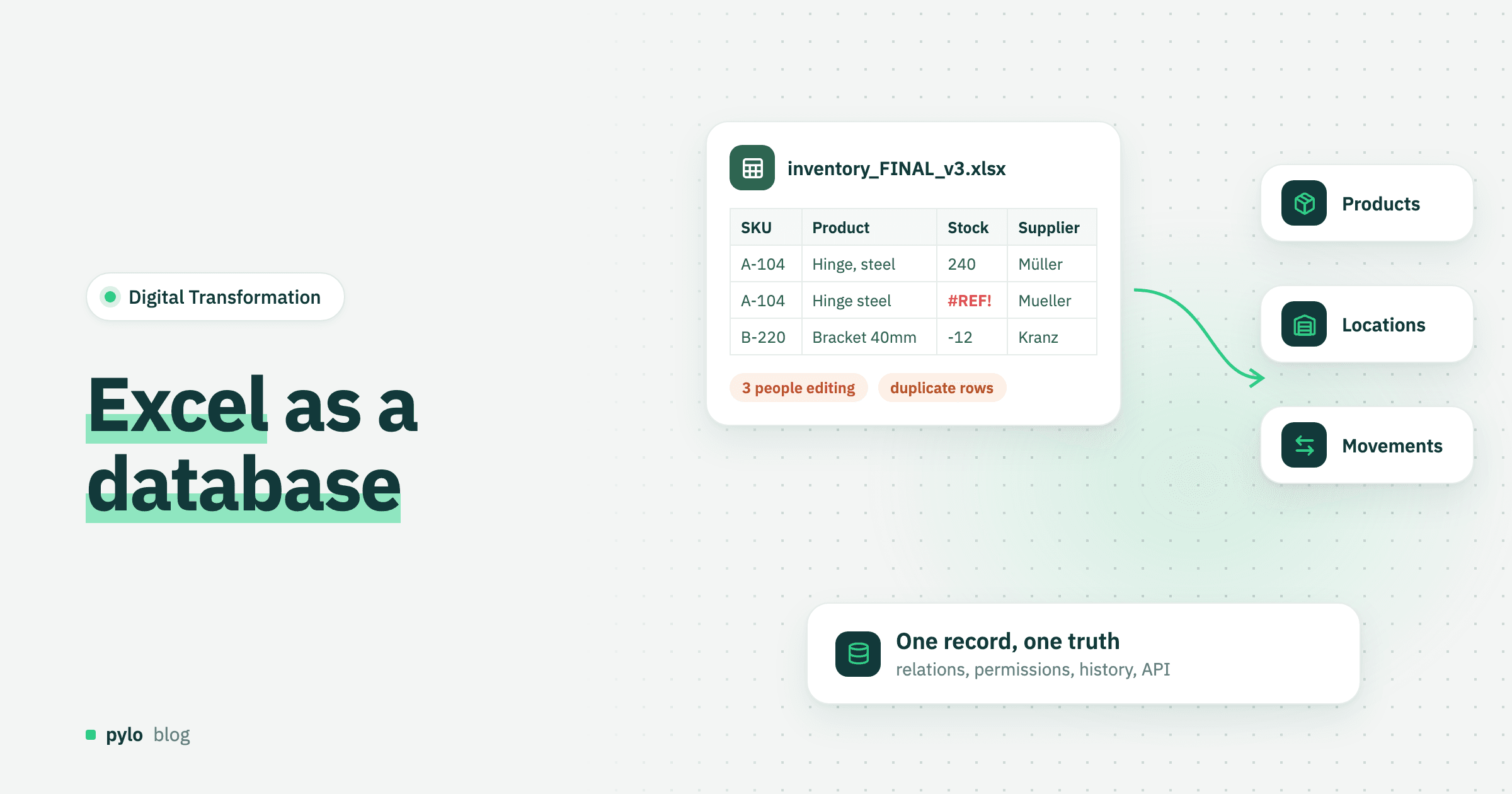
Files named _final_v3. There are copies, and nobody is sure which one is the right one.
Several people edit at the same time. Co-authoring in Microsoft 365 helps, but anyone with access can still overwrite any cell, and there are no rules per row.
Numbers that do not add up. Negative stock, a #REF! after someone deleted a column, totals that differ between two sheets.
The same thing spelled three ways. "ACME Ltd.", "acme" and "AC ME" are three suppliers as far as Excel knows.
Copying data between systems by hand. Orders from the shop pasted into the sheet, stock levels typed into the shop.
One person is the system. Only they understand the macros, and their vacation is a risk.
It gets slow. Excel's hard limit is 1,048,576 rows per sheet, but workbooks full of lookups slow down long before that.
Two or more of these and you are paying for the spreadsheet in errors and hours, even if the license looks free.
Excel vs a database compared
Feature | Excel | Database |
Relations between tables | Lookups by convention, easy to break | Enforced by the system |
Data validation | Optional, per cell, easy to bypass with paste | Field types and rules on every write |
Many users at once | Possible, no record-level control | Built for it, with permissions per role |
Change history | File versions | Per record: who, what, when |
Automation | Macros, Power Automate | Workflows on data changes, schedules, webhooks |
Access for other systems | File export | API |
Getting started | Instant | Needs a data model first |
From one flat sheet to related tables
The core of every migration is splitting a flat sheet into related tables. Look at a typical inventory sheet: every row repeats the product name, supplier and storage location. Each repetition is a chance for a typo, and current stock is a manual sum.
The rule is simple. Every value that repeats becomes its own record, and rows point to it instead of copying it. For inventory that gives you an inventory management database with three core tables:
Product with SKU, name, unit and minimum stock
Location with hall, rack and capacity
Stock movement with product, location, quantity, date and the user who booked it
Current stock is no longer a column. It is the sum of all movements per product and location, calculated by the system. Nobody can type a wrong number into it, and you can see how every unit got there. Add Supplier and Purchase order tables later when you need them.
How to switch from spreadsheets to a database in five steps
1. Audit the sheets. List every tab and file, who edits it, and which formulas or other files depend on it. You will find copies nobody mentioned. Ask each user what they do with the sheet each week. Those answers become your workflows later.
2. Define entities. Write down the tables, their fields and how they relate, as in the inventory example. Decide on unique keys such as SKU or customer number. Keep it small. You can add fields later, but removing them once people rely on them is hard.
3. Clean the data. This is where most of the time goes. Merge duplicate spellings, convert text numbers to numbers, fix dates, drop dead rows. Then export each entity as its own CSV file with one header row.
4. Import and link. Import parent tables first (products, locations), then child tables that reference them (stock movements). Map the SKU or code column to the relation. Afterwards, compare record counts and a few totals against the old sheet.
5. Automate, then retire. Add input forms so people book movements without touching the tables, set permissions per role, and create alerts such as "stock below minimum". Then set the old file to read-only with a date in the file name. If both stay editable, both will be edited.
For a typical inventory or order sheet, plan one to three weeks, most of it on cleanup. The same process works for customer lists. If yours is a CRM in disguise, continue with how to build your own CRM.
Which database should you move to?
It depends on who maintains it and what has to connect to it.
Spreadsheet-style databases feel familiar and get business teams started fast. They work well for one team and simple relations. Compare options in our Airtable alternative and Baserow alternative pages.
A backend platform fits when the data has to connect to a shop, accounting or other software through an API, when you need workflows with real logic, or when developers will build on top of it. With our custom backend as a service platform pylo you get the best of both world: maximum flexibility for your custom tools and UIs on top, a powerful, secure and fast data layer with permissions, APIs and Co. out of the box.
Standard software such as an inventory or ERP system makes sense if your process matches what it expects. Our guide on custom ERP vs standard ERP helps you decide.
Whichever you pick, the data model from step 2 carries over. That work is never wasted.
Conclusion
Excel is a fine database for the start, until several people, systems or rules depend on it. Set it up cleanly while you use it: one table per thing, unique IDs, validated input. When the warning signs pile up, split the flat sheets into related tables, clean the data once and move it. Most of the value comes from the cleanup and the data model, not the new tool. For the wider picture, see our guide on business process digitization.
pylo is built for exactly this move. You define entities and relations, import your cleaned CSV files with column mapping, add forms for data entry and set up workflows that react to changes, for example a reorder alert when stock drops below minimum. Everything is available through a typed GraphQL API for the systems that need it.
Keep reading
Digital Transformation
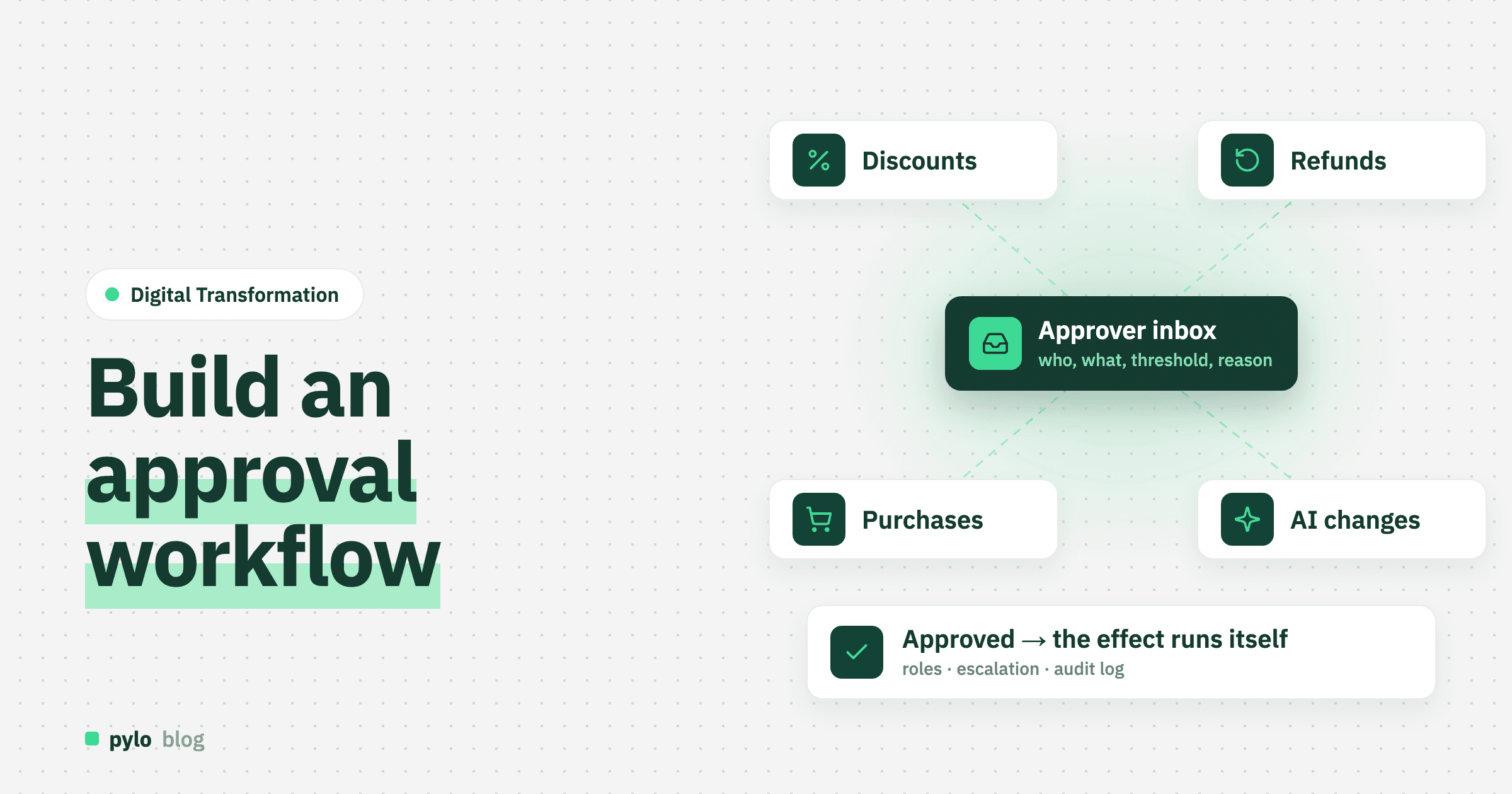
How to build an approval workflow: steps, data model and tools
Approvals by email leave nobody able to say who approved what. How to write the rule, model requests and decisions as data, route them to the right person, build the inbox and the one-click approve, apply the result automatically and keep the audit trail. Three ways to build it and what it costs.
Read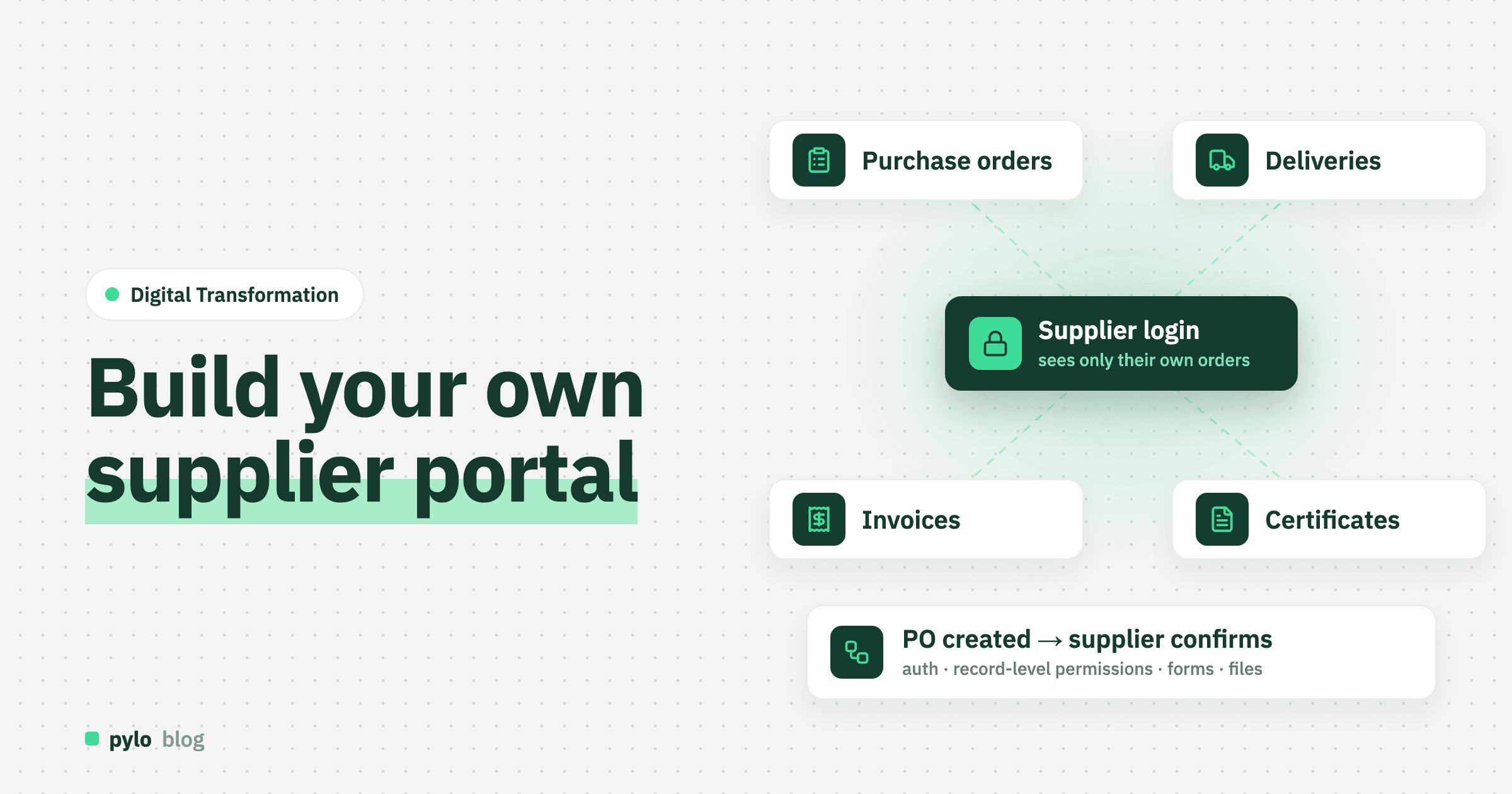
Digital Transformation
How to build a supplier portal: data model, permissions and steps
A supplier portal lets vendors confirm purchase orders, announce deliveries, upload certificates and check invoice status without emailing your purchasing team. What suppliers need to do, the data model behind it, how to keep each supplier inside its own records, three ways to build it and what it costs.
Read