
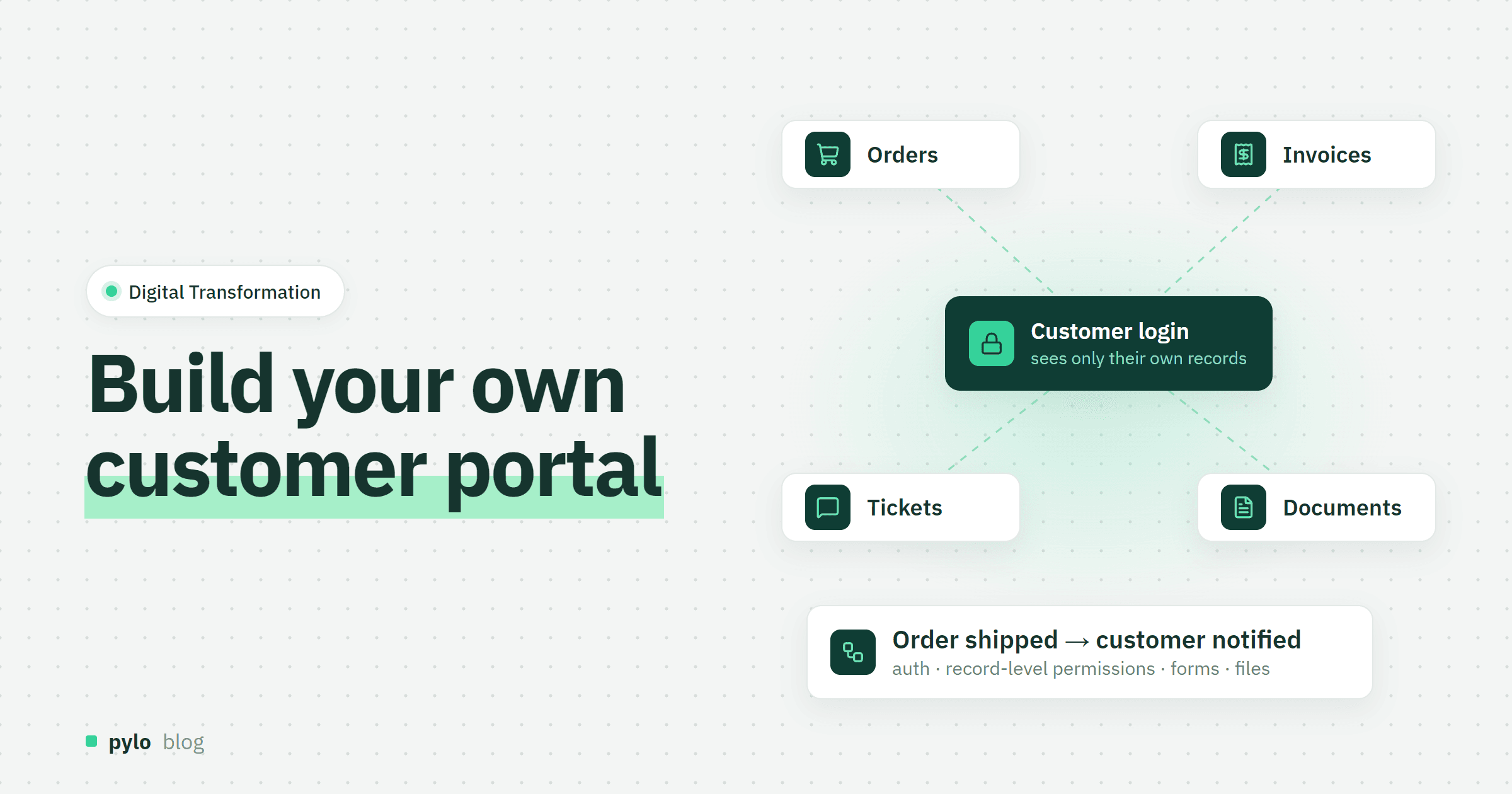
Most emails a B2B company answers are the same five questions: where is my order, can you resend the invoice, what is the status of my ticket, where is the contract, can I change the delivery address. A customer portal answers them without a person in the loop. This guide shows how to build a customer portal that fits your business: what to show, the data model behind it, how to get login and permissions right, the three ways to build it and what it really costs.
What is a customer portal?
A customer portal, also called a client portal, is a login-protected website where your customers see and manage their own data: orders, invoices, tickets, documents, projects or requests. The difference to your shop or your website is the data: a portal shows records that already exist in your systems, filtered to the customer who is logged in.
Should you build or buy a customer portal?
Buy one if a tool you already use offers it and that tool holds all the data customers ask about. Helpdesk tools ship ticket portals, some CRMs ship deal and document portals, accounting tools ship invoice views. If every customer question is answered inside one of those systems, use its portal.
Build one if the answers live in several systems, for example: the order is in the shop or the ERP, the invoice in accounting, the ticket in the helpdesk, the contract on a file share. A bought portal shows one or a subset of them, your own portal shows all of them in one place, with your process on top: approvals, custom pricing, reorder buttons, project status. Building is also the usual route for agencies with many clients and for companies whose process does not fit a standard tool, the same reasoning as in our guide on build vs buy software.
Step 1: Decide what customers need to see
Count the emails and calls of one month and group them. The top three reasons are your first three portal pages. Typical candidates:
Orders with status, tracking and the option to reorder
Invoices with payment status and PDF download
Support tickets with a form to open a new one
Documents such as contracts, certificates and manuals
Projects with milestones and open items
Account data: addresses, contacts and who at the customer may see what
Leave everything else for version two. A portal that answers the three most common questions well beats one that half-answers ten.
Step 2: Define the data model
A customer portal is a permission filter over a handful of related tables. Get the relations right and the pages are mostly lists and detail views.
Entity | Key fields | Relations |
Customer | name, customer number, billing address, terms | has many portal users, orders, invoices, tickets, documents |
Portal user | name, email, role (admin, buyer, viewer) | belongs to a customer |
Order | number, date, status, total, tracking | belongs to a customer, has many order lines |
Invoice | number, date, due date, amount, paid, PDF | belongs to a customer, optionally to an order |
Ticket | subject, status, priority, messages | belongs to a customer and a portal user |
Document | title, type, file, valid until | belongs to a customer |
Three decisions pay off later:
Separate the customer from the people at the customer. One company has several users with different roles. A buyer may order, a viewer may only look at invoices.
Link everything to the customer, not to the user. People leave companies. The orders stay.
Keep internal fields on the same records. Margin, internal notes and the assigned sales rep live on the order too. Permissions hide them from the portal, so you do not maintain a second copy of the data.
Step 3: Get login and permissions right
This step decides whether the portal is safe. Three layers:
Login. Email and password with a reset flow, plus Google or Microsoft sign-in if your customers use those. Invitations should come from the customer's admin user, not from your support team.
Record-level permissions. A portal user sees the records of their own customer and nothing else. Enforce this in the backend, never in the frontend. A filter in the UI is one missing
whereclause away from showing another company's invoices.Field-level permissions. The same order record carries the price the customer sees and the margin only your team sees. Rules per field keep both on one record.
Write down who may create what. Customers usually may create tickets and requests, maybe orders, but never invoices. And log every change with who did it, both for support questions and for audits.
Step 4: Build the pages
Start with six screens:
Dashboard. Open orders, unpaid invoices, open tickets, latest documents.
Orders. A list with status filters and a detail page with lines, tracking and a reorder button.
Invoices. List with paid and unpaid, PDF download, a link to the order.
Tickets. List, detail with the message thread, a form for a new ticket that writes straight into the ticket table.
Documents. List by type with expiry dates.
Account. Addresses, contacts and roles, managed by the customer's admin.
A mobile-friendly layout is not optional. Half of these lookups happen on a phone, on site or in a warehouse.
Step 5: Connect the systems you keep
The portal shows data, it does not have to be the system of record for all of it. Orders may stay in the shop, invoices in accounting. Connect them through their APIs or webhooks and decide per entity which system owns it. Import history first, with a CSV export from each system, so customers see their past orders on day one. Then switch to live updates: when the shop ships an order, the portal record changes within seconds.
Step 6: Add the workflows
A portal becomes useful when things happen without someone remembering:
When an order ships, send the customer an email with the tracking link.
When an invoice is seven days overdue, send a reminder and flag it on the dashboard.
When a ticket is created, assign it to the right team and confirm receipt.
When a document expires in 30 days, notify the customer's admin.
Write these as "when X, then Y" rules first. They map directly to the triggers of any workflow engine: a record changes, a schedule fires or an outside system calls in.
Three ways to build a customer portal
No-code portal builder. Tools like Softr or Stacker put a portal on top of a spreadsheet-style database. Fast to start, fine for a few hundred records and simple roles. The limits show when data lives in several systems, permissions get specific or volumes grow.
Backend platform plus your own frontend. The platform holds the data model, API, login, permissions, files and workflows. You build the portal pages with a web framework such as Next.js, or configure views in the platform's admin UI. This is the middle ground for teams with at least one developer and a process of their own. Our backend as a service pylo is built for this: entities with relations, a typed GraphQL API, record and field permissions, login with Google and Microsoft, forms, files and flows, with a Next.js SDK for the portal itself.
From scratch. Your own database, API, auth, permission layer, file handling and UI. Full control, but most of the hours go into plumbing that every portal needs and that customers never see.
How much does a customer portal cost?
Compare three-year costs. A rough model for a portal with the six entities above, two roles and the four workflows:
Option | Upfront | Ongoing | 3-year estimate |
Portal module of an existing tool | Setup | Often an add-on or a higher plan, sometimes per customer seat | Depends on the tool; check what happens at 500 customers |
No-code portal builder | 30 to 80 hours | Builder plus database subscription, often priced per external user | 2,400€ to 6,400€ to build, plus subscription and seats |
Backend platform plus own frontend | 50 to 150 developer hours | Platform fee plus a few hours a month | 4,000€ to 12,000€ to build |
From scratch | more than 180 developer hours | Hosting, security updates, maintenance | more than 14,400€ to build, plus upkeep |
The hour ranges are our estimates, priced at 80€ per hour. The line to watch is per-user pricing: a portal is used by your customers, and a tool that charges per external user turns a success into a bill.
Common mistakes
Building before counting the questions. The first version should answer the top three requests, nothing more.
Permissions in the frontend. Every data leak in a portal we have seen came from a filter that lived in the UI instead of the backend.
Copying the internal screens. Customers need five fields, not fifty. Hide the rest.
No owner. Someone has to answer "why can't I see my invoice" on day one and keep the portal in sync with your process.
Forgetting the invite flow. If your team has to create every user by hand, the portal never reaches most customers.
Can AI help in a customer portal?
Yes, with the same rule that applies to people: an assistant that answers "where is my order" must see only that customer's records. The clean way is to give the agent access through an MCP server that runs with the logged-in user's permissions, and to turn anything it wants to change into a request a person approves. Our posts on MCP servers and how to build an AI agent explain the setup.
Conclusion
A customer portal is a permission filter over data you already have, plus a few workflows. Count the questions, model six entities, enforce permissions in the backend, connect the systems you keep and automate the notifications. The portal pays for itself in answered emails within months. If your orders and invoices already live in a system you built, this is the natural next step after building your own CRM or a custom ERP.
If you want the middle path, pylo gives you the data model, the typed API, login for your customers, record-level permissions, forms, files and flows, hosted in Germany, so the portal is the only part you build. Compare it as a Retool alternative or an Airtable alternative if that is what you use today.
Keep reading
Digital Transformation
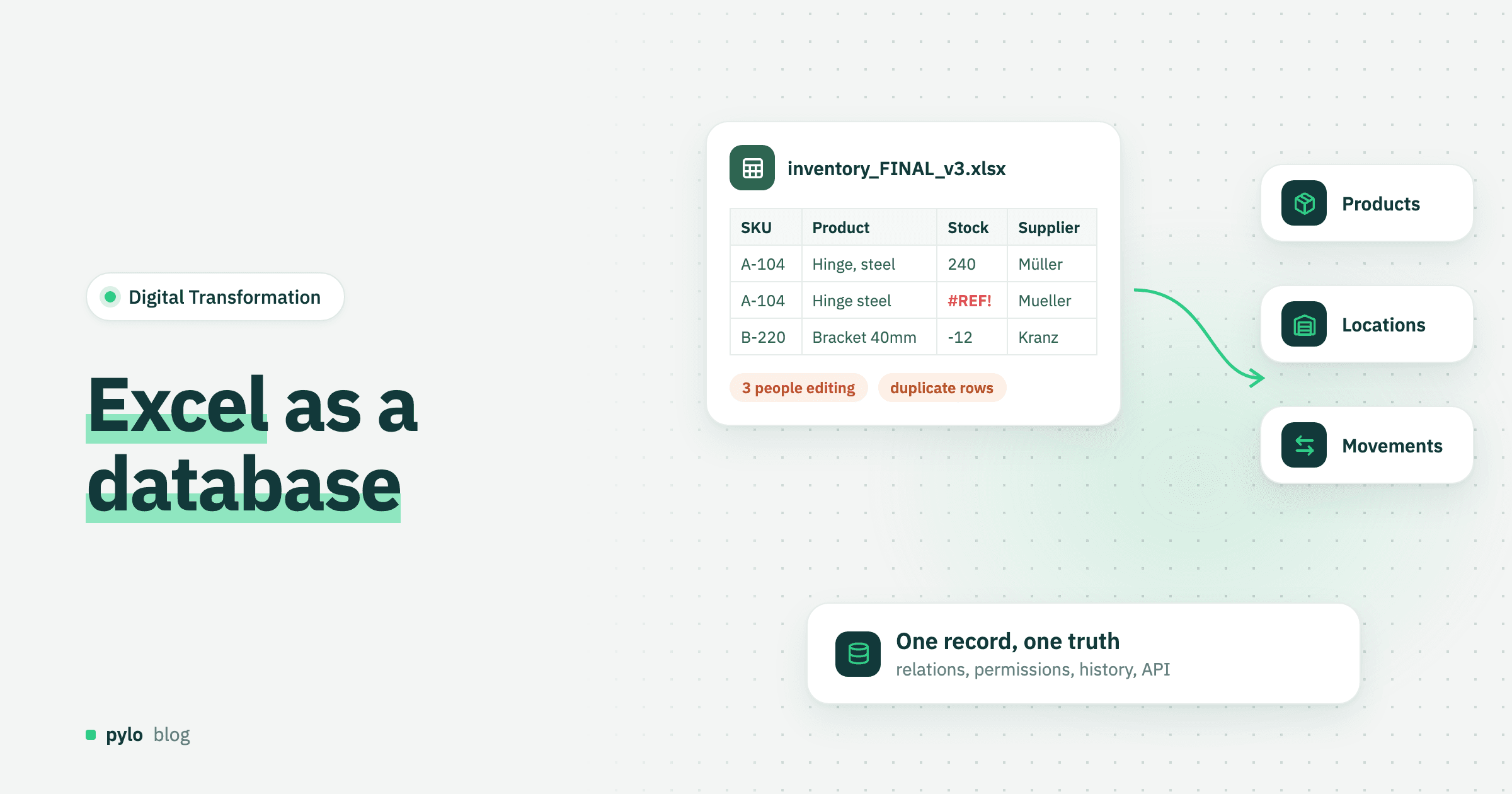
Excel as a database: where it breaks and how to switch
Excel works as a database until several people, systems and rules depend on it. Here is how to set up a database in Excel properly, the signs you have outgrown it, and how to move from spreadsheet to database in five steps.
Read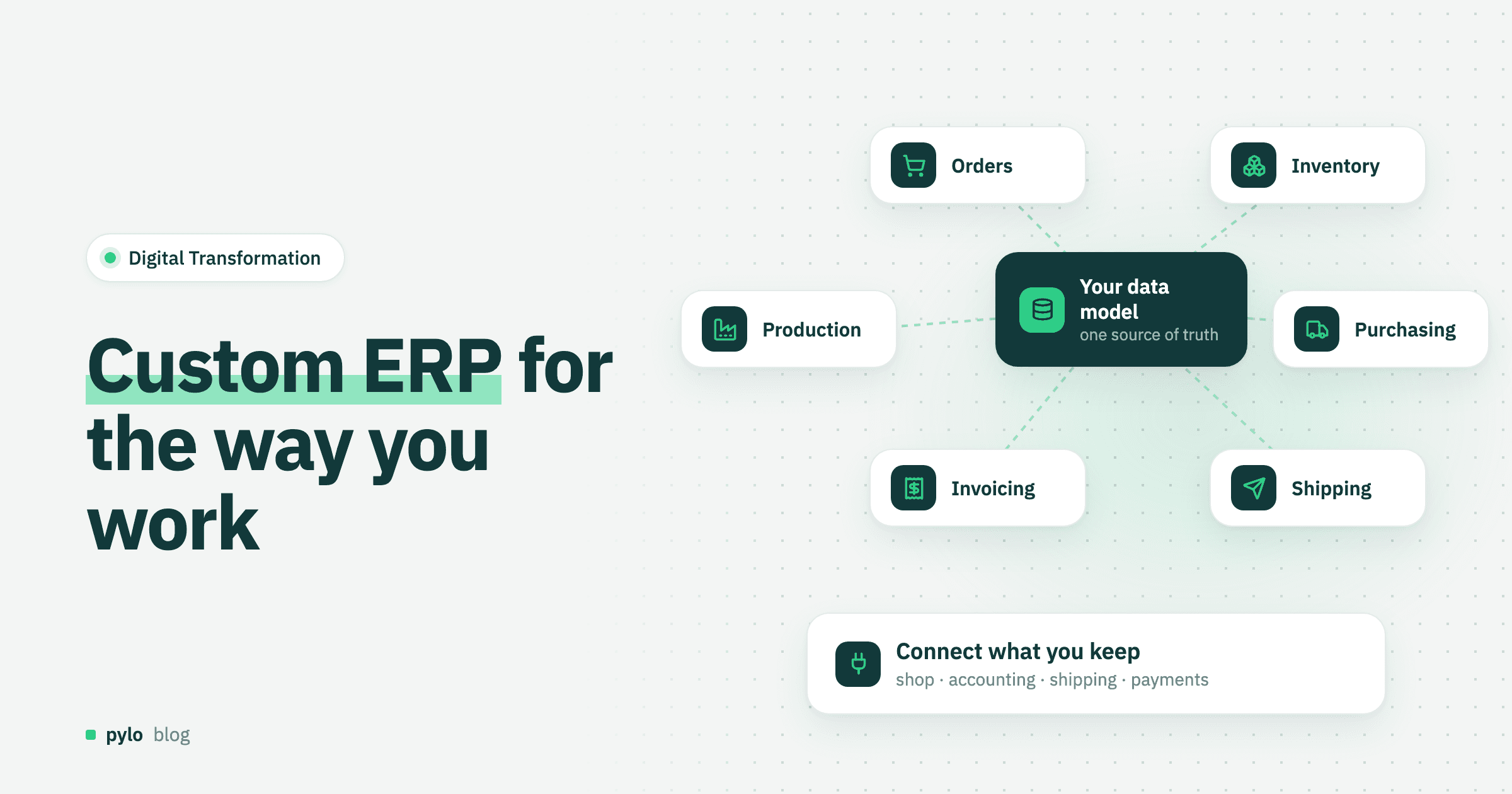
Digital Transformation
Custom ERP: when to build your own ERP system and how to start
Standard ERPs make you adapt to the software. A custom ERP follows your process. Here is when a custom ERP system pays off, how to decide process by process, and why order management is the best place to start.
Read