
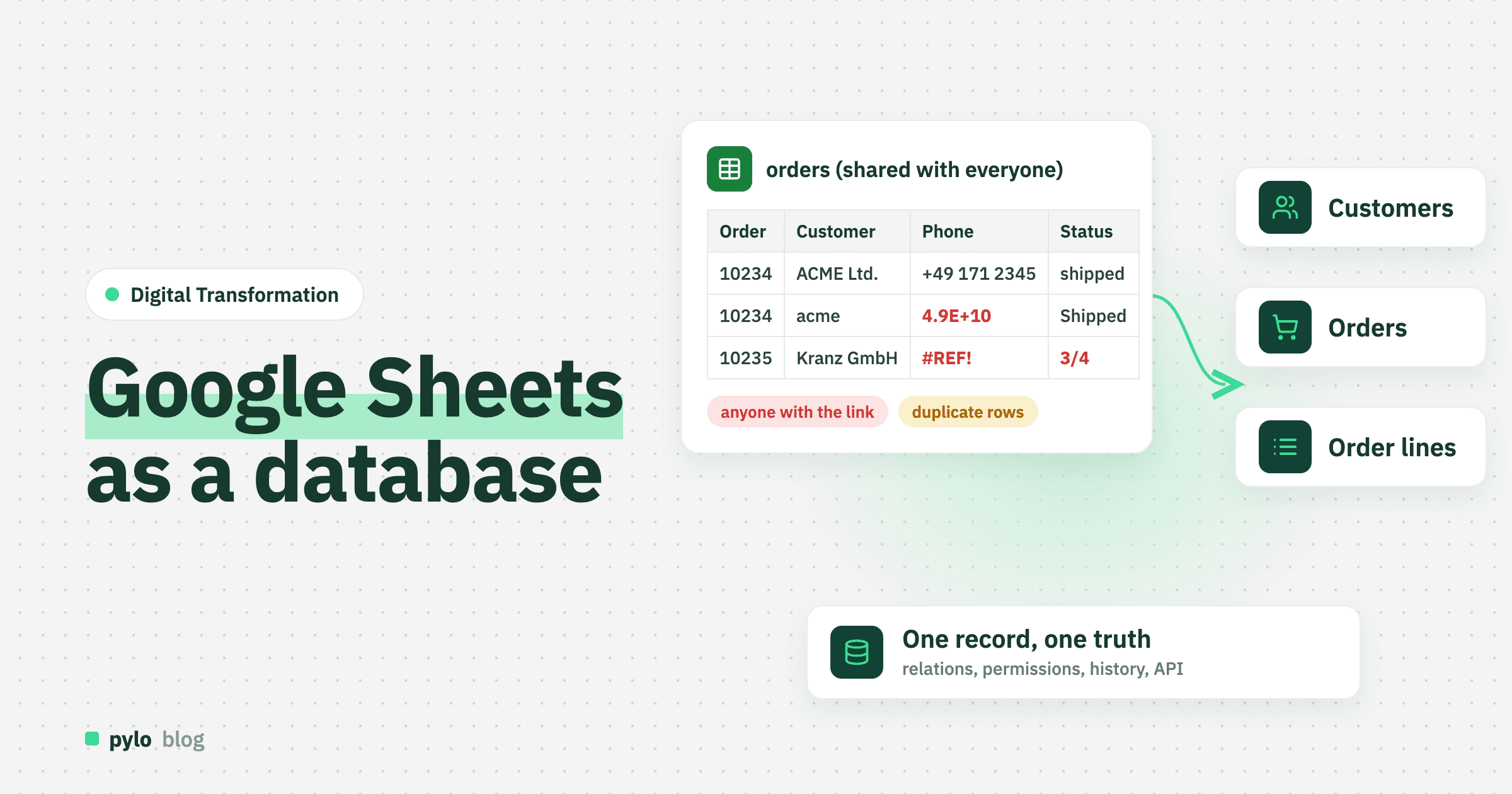
Google Sheets is where a lot of companies keep their most important list: orders, leads, bookings, stock. It is free, it is shared with one link and everyone can edit at once, which is why it wins over Excel for teams. Using Google Sheets as a database is a reasonable start. This guide shows how to set it up properly, what happens when a sheet becomes the backend of an app, the signs that your sheet has outgrown Sheets, and how to move to a real database without losing data or weeks of work. The running example is an order sheet fed by a shop and a Google Form, because that is the setup we see most often.
Can you use Google Sheets as a database?
Yes, for a while. Sheets stores structured rows, filters and sorts them, looks up values across tabs and files, and lets several people edit at the same time without the file copies Excel produces. It has an API, Apps Script can run code on edits and on a schedule, and Google Forms writes straight into it. For one team tracking a few thousand rows, that is a lot of database for free.
What Sheets lacks are the things that make a database a database: relations the system enforces, field types that reject wrong input, permissions per row, a change log you can query, and writes that do not trample each other when an app and a person edit at once. You can imitate some of these with discipline and scripts. You cannot imitate all of them, and the scripts become the problem.
How to set up Google Sheets as a database
If you stay with Sheets for now, set it up so the later move is easy. Six rules:
One tab per object. Orders on one tab, customers on another, products on a third. Not one wide tab with everything.
One header row, one record per row. Freeze the header, no merged cells, no subtotals between rows, no colour as data.
Give every record a unique ID. An order number, a customer number, a SKU. Other tabs refer to the ID, never to the name. Do not use the row number, it changes when someone sorts. If your data has no ID by itself, generate one within the table (that can be as easy as an incrementing number)
Restrict input. Data validation with dropdowns for status, unit and location, so nobody types "shipped" and "Shipped " as two values. Set the column format to plain text where Sheets would otherwise turn "01234" into 1234 or "3/4" into a date.
Collect input through a form. A Google Form that writes into the orders tab is safer than people typing into the table, and it already behaves like the input form you will build later.
Protect the tabs. Protected ranges keep the customers tab read-only for most people and the formulas safe from a stray paste. Note that this protects a range, not a row: there is no way to let a sales rep see only their own customers.
Then connect the tabs with XLOOKUP or VLOOKUP, or with QUERY when you need a filtered join. An order row stores the customer number and looks up the name. Open order value is a SUMIFS over the orders, not a number someone types in. Built this way, your spreadsheet is already a small relational database, and that is exactly the structure you will need later.
Using Google Sheets as a backend for an app
Sheets is often the first backend of a small app, a website form or an automation. There are three ways to do it, and each has a point where it stops working.
Automation tools. Zapier, Make or n8n add a row when a shop order arrives and send an email when a status changes. Fine for a few events a day. The tool's run-based pricing and the lack of any check on what gets written become a problem at a few hundred.
Apps Script. A script on edit, on form submit or on a timer can validate, calculate and call other services. It is real code, in a file only one person usually understands, with a six-minute execution limit per run and quotas on emails and external calls. The onEdit trigger fires for every cell change, including the accidental ones.
The Sheets API. An app reads and writes rows directly. Reads are fast enough. Writes are the problem: there are no transactions, so two writes to the same row race, and the API quota of a few hundred requests per minute per project is shared by every user of your app. Every value arrives as a string, so the app parses numbers and dates itself, and a column someone inserts by hand shifts every write that followed by one cell.
The pattern is always the same. The sheet works until a second system or a second developer depends on it, then every edit by a person becomes a risk for the app and every change to the app becomes a risk for the people.
Signs your sheet has outgrown Google Sheets
Sheets rarely fail in one moment. They fail slowly, then all at once. Watch for these signs:
Someone sorted the tab and the lookups broke. Or a row was deleted while the script was writing to it.
Everyone can see everything. The link was shared with the team and the team now includes freelancers, partners and former colleagues. Sharing works per file or tab, never per row, so the only way to hide data is a second sheet, which is then out of date.
Numbers that do not add up. A phone number became 4.9E+10, a date became a number, a SUMIFS silently excludes the rows pasted as text.
The same thing spelled three ways. "ACME Ltd.", "acme" and "AC ME" are three customers as far as Sheets knows.
Copying data between systems by hand. Orders from the shop pasted in, tracking numbers typed back into the shop.
One person is the system. Only they understand the Apps Script, and their vacation is a risk.
It gets slow. The hard limit is 10 million cells per file, but a sheet full of IMPORTRANGE and QUERY formulas crawls long before that, and opening it on a phone becomes impossible.
Someone asks where the data is hosted. Personal data in a Google sheet lives in Google's data centres under US law. If customers or auditors ask about that, our guide to a GDPR-compliant backend explains what to check.
Two or more of these and you are paying for the sheet in errors and hours, even if the licence is free.
Google Sheets vs a database compared
Feature | Google Sheets | Database |
Relations between tables | Lookups by convention, break on sort or delete | Enforced by the system |
Field types | Every cell is whatever was typed, auto-formatted on the way in | Typed fields, rules on every write |
Many users at once | Yes, with no control per row | Yes, with permissions per role, record and field |
Change history | Version history and per-cell edit history, not searchable | Per record: who, what, when, queryable |
Automation | Apps Script, automation tools | Workflows on data changes, schedules, webhooks |
Access for other systems | Sheets API, untyped, shared quota, no transactions | Typed API |
Data location | Google's choice | Your choice of provider and region |
Getting started | Instant, free | Needs a data model first |
If you are comparing with Excel as well, our guide on Excel as a database covers the same questions for a file on a shared drive. The short version: Sheets is better at collaboration, Excel at large workbooks, and neither is a database.
From one flat sheet to related tables
The core of every migration is splitting a flat sheet into related tables. Look at a typical order sheet fed by a shop and a form: every row repeats the customer's name, email and address, the product name and the price. Each repetition is a chance for a typo, and "all orders of this customer" is a filter someone has to build by hand.
The rule is simple. Every value that repeats becomes its own record, and rows point to it instead of copying it. For orders that gives you four core tables:
Customer with customer number, name, email and addresses
Product with SKU, name and price
Order with order number, date, status and the customer it belongs to
Order line with the order, the product, the quantity and the price at the time
The customer's address lives in one place. The order total is the sum of its lines, calculated by the system. The status is a field with fixed values, and a rule can fire when it changes. Add Invoice and Shipment tables later when you need them.
How to switch from Google Sheets to a database in five steps
1. Audit the sheets. List every file and tab, who edits it, which forms, scripts, IMPORTRANGE formulas and automation tools write to or read from it. Open the Apps Script editor and the connected apps list; you will find a trigger nobody remembered. Ask each user what they do with the sheet each week. Those answers become your workflows later.
2. Define entities. Write down the tables, their fields with types and how they relate, as in the order example. Decide on unique keys such as order number and customer number. Keep it small. You can add fields later, but removing them once people rely on them is hard.
3. Clean the data. This is where most of the time goes. Merge duplicate spellings, turn the text that Sheets auto-formatted back into numbers and dates, split the full name column if you need first and last name, drop dead rows. Then download each entity as its own CSV with one header row. Set the date format once for the whole export so every row parses the same way.
4. Import and link. Import parent tables first (customers, products), then child tables that reference them (orders, order lines). Map the customer number column to the relation. Afterwards, compare record counts and a few totals against the old sheet.
5. Reconnect, then retire. Point the shop at the new API or a webhook instead of the sheet, replace the Google Form with a form that writes into the data model, rebuild the Apps Script logic as workflows and set permissions per role. Then make the old sheet view-only with a date in the name. If both stay editable, both will be edited.
Which database should you move to?
It depends on who maintains it and what has to connect to it.
Spreadsheet-style databases feel familiar and get business teams started fast. They work well for one team and simple relations, and they are the smallest step from Sheets. Compare options in our Airtable alternative and Baserow alternative pages.
A backend platform fits when the data has to connect to a shop, accounting or an app through an API, when you need workflows with real logic, when permissions per row matter, or when developers will build on top of it. Our backend as a service platform pylo is built for this step: entities with typed fields and relations, CSV import with column mapping, forms, workflows, permissions per role and record, and a typed GraphQL API, hosted in Germany.
Standard software such as a shop back office or an ERP makes sense if your process matches what it expects. Our guide on custom ERP vs standard ERP helps you decide.
Whichever you pick, the data model from step 2 carries over. That work is never wasted.
Conclusion
Google Sheets is a fine database for the start, and a better one than Excel for a team, until an app, a second system or a permission rule depends on it. Set it up cleanly while you use it: one tab per thing, unique IDs, validated input, a form for entry. When the signs pile up, split the flat sheet into related tables, clean the data once, find everything that was connected and move it. Most of the value comes from the cleanup and the data model, not the new tool. For the wider picture, see our guide on business process digitization.
pylo is built for exactly this move. You define entities and relations, import your cleaned CSV files with column mapping, replace the Google Form with a form that writes into the data model, and turn the Apps Script into workflows that react to changes, for example an email when an order is marked shipped. Everything is available through a typed GraphQL API for the shop and the app that used to read the sheet.
Keep reading
Digital Transformation
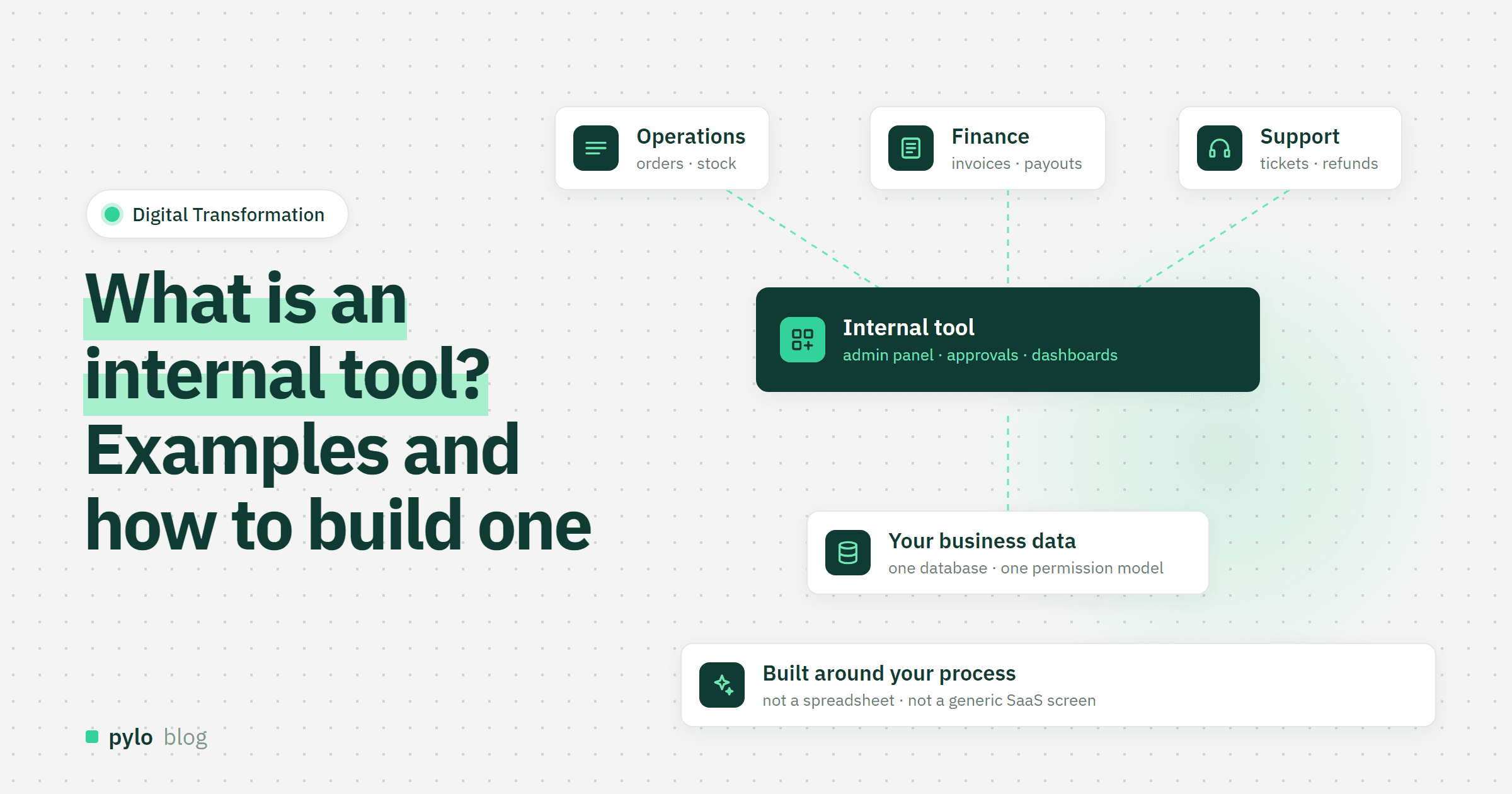
What is an internal tool? Examples, types and how to build one
Internal tools are the admin panels, back offices and approval apps your team uses to run the business. What counts as an internal tool, typical examples, what they are made of, four ways to build one and how to get from spreadsheet to working app.
Read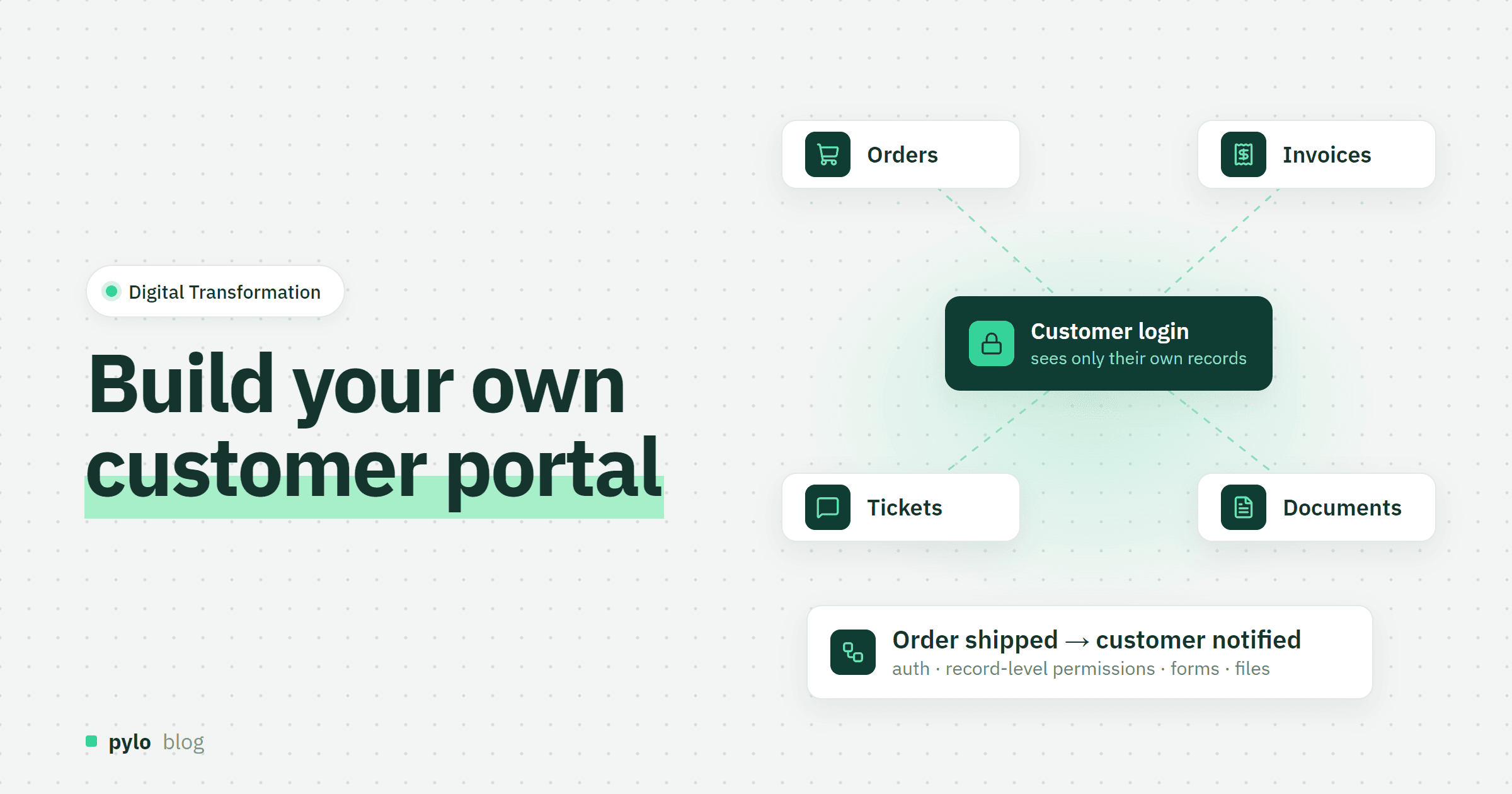
Digital Transformation
How to build a customer portal: data model, permissions and steps
A customer portal lets clients see their orders, invoices, tickets and documents without emailing you. What to show, the data model behind it, how to get permissions right, the three ways to build it and what it costs.
Read